
Muse from Meta
Meta Platforms, Inc.Productivity
4.718.68K Reviews
- Version
- 13.0.0.4.159
- Installs
- 5.00M
- Age Rating
- Teen
Screenshots


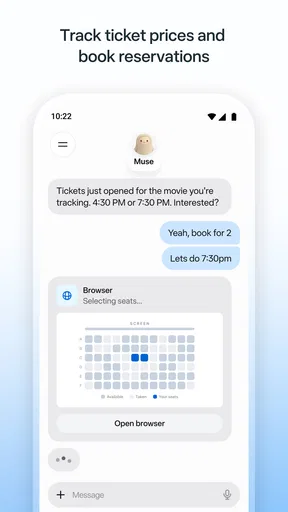
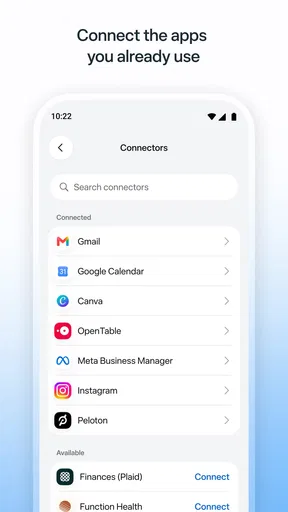

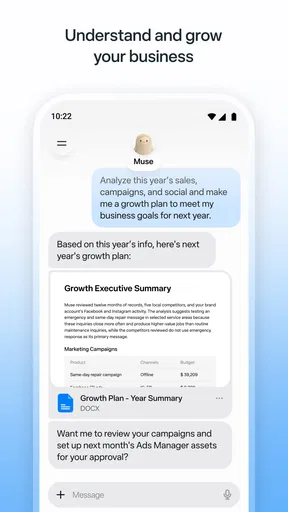


Our Review of Muse from Meta
 Analysis by Appyee
I approach Muse from Meta as a productivity companion, not as a replacement for a calendar, notes app, or careful human judgement. Its appeal is the promise of an AI agent you can turn to while working through everyday tasks. That can be useful when I need help getting unstuck or shaping a rough idea, but the value depends on how well I frame a request and check the result. I would treat it as a flexible assistant, rather than a source of unquestionable answers.
Muse is a free productivity app from Meta Platforms, Inc. Its audience is broad: people who want AI support for ordinary planning and writing, as well as curious users who want to experiment with a more conversational way to handle small tasks. The app has a 4.7 average from around 115,000 ratings, and more than five million installs. Those figures suggest substantial interest, but they do not tell me whether its approach fits a particular routine. The best test is whether it saves effort on tasks you already do.
Build a useful baseline before expecting magic
The simplest way to get value from an AI assistant is to bring it a specific, bounded job. Instead of asking it to “help me be productive,” I would try something concrete: turn a messy set of errands into a sensible order, draft a polite reply to a routine message, or help break a daunting project into smaller next steps. The more relevant context I provide, the less likely I am to receive a smooth but generic answer.
A realistic use case is planning a busy weekday. I might explain that I have a fixed appointment, a few errands, and one task that needs quiet concentration, then ask for a practical sequence. I would check the suggestions against real travel time, opening hours, and commitments before relying on them. The useful part is not handing over control; it is getting a first draft of a plan that I can adjust quickly.
That distinction matters because conversational AI can make a weak suggestion sound confident. For anything involving deadlines, money, health, or a promise to another person, I would verify the details independently. Muse is most comfortable as a thinking partner for low-risk work: brainstorming, outlining, summarizing information I provide, or finding a clearer way to phrase something. It is less suitable as the final authority on facts that need to be exact.
For a first session, I recommend choosing one recurring irritation rather than trying to reorganize your whole life. Ask for a usable output, then refine it: “Make this shorter,” “Keep the tone warm but direct,” or “Separate what I need to do today from what can wait.” That follow-up approach gives the conversation direction and makes it easier to judge whether the assistant is helping or simply producing more text.
Check the practical details that shape daily use
Before building a habit around Muse, I would look through the available settings and read each option in context. AI apps can offer controls that affect the experience, but I would not assume a particular setting exists or behaves a certain way without seeing it in the current version. The useful practice is simple: notice the choices presented during setup and revisit them when the app’s behavior feels mismatched to your needs.
Privacy deserves a deliberate pause. Before sharing personal notes, work details, or someone else’s information, I would check the app’s current disclosures and settings, then decide what is appropriate to enter. A good rule is to remove names and identifying details when they are not needed for the task. That still leaves plenty of room to ask for help with a general outline, a neutral rewrite, or a decision framework.
It is also worth checking how the app fits your device and working habits. Muse is listed for a minimum operating-system version of 10, and its current version is 13.0.0.4.159. If you are considering it on an older device, confirm compatibility in the app store before planning around it. For sustained work, I would also test whether the interaction style feels comfortable for longer prompts; a tool that is pleasant for quick questions may not be the best place to manage a large project.
The app is free to download, but it includes in-app purchases ranging from $0.99 to $1,049.00 per item. That is a wide range, so I would inspect the purchase screen carefully before confirming anything and distinguish optional spending from the basic download. If you are trying Muse casually, there is no reason to make a purchase decision before you know whether its everyday responses are useful to you.
Use repeatable prompts to reduce back-and-forth
One of the most practical habits with an assistant like Muse is to reuse a simple prompt structure. I start with the situation, state the desired result, add constraints, and say what the answer should look like. For example: “I need to tell a colleague I can’t take on this extra task. Keep it friendly, avoid overexplaining, and give me two versions.” This is more likely to produce something I can use than a vague request to write a message.
For planning, I would ask for a short list with clear distinctions rather than an elaborate productivity system. A useful prompt might request “three next actions, ordered by what unblocks the most work,” followed by a quick review of whether those actions are actually feasible. The trade-off is that the assistant can organize what you tell it, but it cannot reliably infer missing commitments or personal priorities. I still need to supply those and make the final call.
Another repeatable pattern is to separate idea generation from decision-making. I might first ask for several approaches to a presentation opening, then choose one and ask for a tighter version. This keeps the assistant from prematurely narrowing the options. It also helps avoid a common frustration: accepting the first polished answer even when it does not sound like me. I treat generated wording as a draft to edit, not a finished statement I must send as-is.
When an answer misses the point, I find it more useful to name the mismatch than to restart with a completely different question. “That assumes I have an hour; I only have fifteen minutes” gives the conversation a clear correction. If the response is still off, I would reduce the task to one smaller question. This is a sensible limit of conversational tools: they can respond to guidance, but they do not always understand an unstated intention on the first try.
Where an AI assistant fits—and where it does not
Compared with a standard notes app, Muse’s conversational approach is better suited to transforming an idea or asking for a first pass than to keeping a stable, carefully organized record. Compared with a calendar or task manager, it is better at helping me think through what a plan could look like than at serving as the authoritative place for appointments and deadlines. I would keep those tools for the records they already manage well, and use Muse for the reasoning or drafting around them.
That division of labor is important for experienced users. I would not copy a plan into my routine until I have checked it, and I would not use a conversational thread as the only home for a task I cannot afford to forget. Instead, I can ask Muse to help clarify the next step, then move that step into the task system I already trust. This creates a useful handoff without expecting an AI chat to behave like a dedicated organizer.
Muse is also not the right choice for everyone. If you prefer predictable menus, fixed templates, and a clear record of every task, a conventional productivity app may feel more dependable. If you need exact, sourced answers or must keep sensitive work information tightly controlled, use a tool and process designed for those requirements. And if you dislike refining prompts, the conversational format may feel like extra work rather than a shortcut.
Its content rating is Teen, which is worth keeping in mind when deciding whether it is appropriate for a younger user. More broadly, I would set expectations before handing the app a difficult or emotionally charged problem. An AI can help organize thoughts, but it cannot replace a trusted person or professional support when the situation calls for human care.
Who is likely to get the most from Muse?
I see the strongest fit for someone who often has a rough thought but struggles to turn it into a clear message, outline, or manageable sequence of actions. A student could use it to shape a study plan from a known list of assignments, while a busy parent might ask for a simple way to group household errands. A solo worker could use it to test different ways of explaining an idea before sending a proposal. In each case, the user remains responsible for checking the result.
It can also suit people who enjoy iterating. If you are comfortable saying what is wrong with a draft and asking for a revision, you can steer the exchange toward something more personal and useful. Someone who wants a single perfect response with no follow-up may be disappointed. The app’s usefulness is tied partly to the quality of the conversation you are willing to have with it.
Meta’s app has a Teen age rating, and its scale is reflected in millions of installs. Those details may help you assess its general reach and intended audience, but neither guarantees a match for your particular workflow. I would start with a low-stakes task, notice whether the replies save time after editing, and decide from that experience rather than from popularity alone.
My verdict: a capable helper, not a personal operating system
I would recommend Muse to someone who wants an approachable AI assistant for brainstorming, drafting, and turning vague intentions into a first workable plan. Its strongest role is reducing the friction of starting. The payoff comes when I give it useful context, ask for a focused output, and then apply my own judgement. Used that way, it can be a practical addition to a productivity routine without demanding that I replace the tools I already rely on.
I would skip it—or keep it strictly occasional—if I needed a traditional organizer, a source of guaranteed facts, or a place to store sensitive material without first examining the app’s current controls. I would also avoid treating a polished answer as proof that the advice is sound. That caution is not a special flaw of Muse; it is part of using AI responsibly, and it becomes more important as the task becomes more consequential.
For me, the mastery point is a repeatable loop: provide context, ask for one concrete result, correct what does not fit, and move any real commitment into the proper tool. That approach makes the assistant easier to evaluate and limits wasted exchanges. With a 4.7 average and a free starting point, Muse is easy to try, though optional purchases call for a careful look before spending. I would give it a place in my toolkit for flexible thinking, while keeping calendars, task lists, and final decisions firmly in human hands.
Privacy and Permissions
See what permissions an app requests and how it handles your data.
- Calendar
- read calendar events plus confidential information, add or modify calendar events and send email to guests without owners' knowledge
- Contacts
- read your contacts, modify your contacts
- Location
- approximate location (network-based), precise location (GPS and network-based)
- SMS
- read your text messages (SMS or MMS), send SMS messages
- Phone
- directly call phone numbers, read call log
- Photos/Media/Files
- read the contents of your USB storage
- Storage
- read the contents of your USB storage
- Camera
- take pictures and videos
- Microphone
- record audio
- Wi-Fi connection information
- view Wi-Fi connections
- Other
- view network connections, pair with Bluetooth devices, access Bluetooth settings, allow Wi-Fi Multicast reception, full network access, change your audio settings, run at startup, control vibration, prevent device from sleeping, set an alarm
Verdict
Strengths of Muse from Meta
- Offers a hands-free way to interact with Meta AI.
- Can provide contextual answers based on what you see.
- Supports voice interaction for convenient use.
- Designed for comfortable wear during daily activities.
- Pairs with compatible Meta smart glasses.
Limitations of Muse from Meta
- Requires compatible Meta smart glasses to use its features.
- Availability may vary by country and device.
- AI responses can be inaccurate or incomplete.
- Some features may require an internet connection.
- Using camera-based features raises privacy concerns.
Other Releases by Meta Platforms, Inc.
View All


Similar Picks in This Category
View All
Google Calendar
Google LLC4.6

Google Drive
Google LLC4.3

Google Assistant
Google LLC3.9

Microsoft OneDrive
Microsoft Corporation4.6

Samsung Calendar
Samsung Electronics Co., Ltd.4.1

Microsoft OneNote: Save Notes
Microsoft Corporation4.6
Frequently Asked Questions
What is Muse from Meta?
Muse is Meta’s AI-powered creative app for making and exploring visual content. Depending on the features available in your region and account, it may let you generate or remix images using text prompts and discover creations shared by other people. It is intended for experimentation and entertainment rather than professional design work, and the tools and results can change as Meta updates the app.
How do you create images with Muse?
You generally start by describing the image you want in a written prompt, then use the app’s available controls to generate or adjust a result. Clear descriptions of the subject, setting, style, and mood can help guide the output, though results may still vary. Available options, generation limits, and editing features can depend on the version of Muse, your location, and whether you are signed in.
Is Muse from Meta free to use?
Muse may be available to try without a purchase, but free access does not necessarily mean unlimited use. Meta can set usage limits, change feature availability, or introduce paid options, and these details may differ by country or over time. Check the app’s store listing and any in-app notices before relying on a particular feature or assuming that image generation will remain free.
Do you need a Meta account to use Muse?
Account requirements can depend on how Muse is offered in your region and which features you want to use. Some parts of an app may be viewable without signing in, while generating, saving, or sharing content may require an account. Before downloading, review the current store listing and sign-in screens, and check Meta’s privacy information to understand what account details and activity may be associated with your use.
Can you share or use images made with Muse commercially?
Muse may provide ways to save or share generated creations, but permission to use an image commercially is a separate question. Review Meta’s current terms, any notices shown when content is generated, and the rules of the platform where you plan to publish it. Generated images can also resemble existing works or depict recognizable people, so check rights, consent, and local laws before using or distributing them.
